Cards
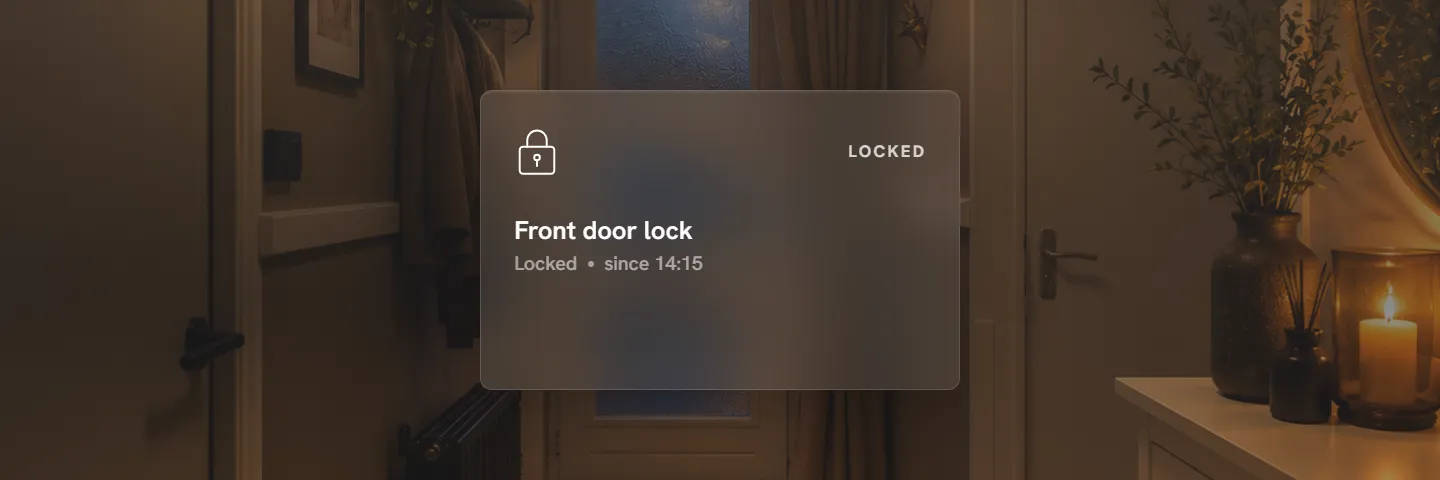
Every entity in a room becomes a card. A card shows its icon top left, its state top right, the name and a short line in the middle, and an optional extra line at the bottom.
Tap and hold. By default lights and switches toggle on tap and open details on hold. Everything else opens details on tap. Media, covers and thermostats also have buttons right on the card. You can change all of this per card or per card type: see Card settings.
Lights
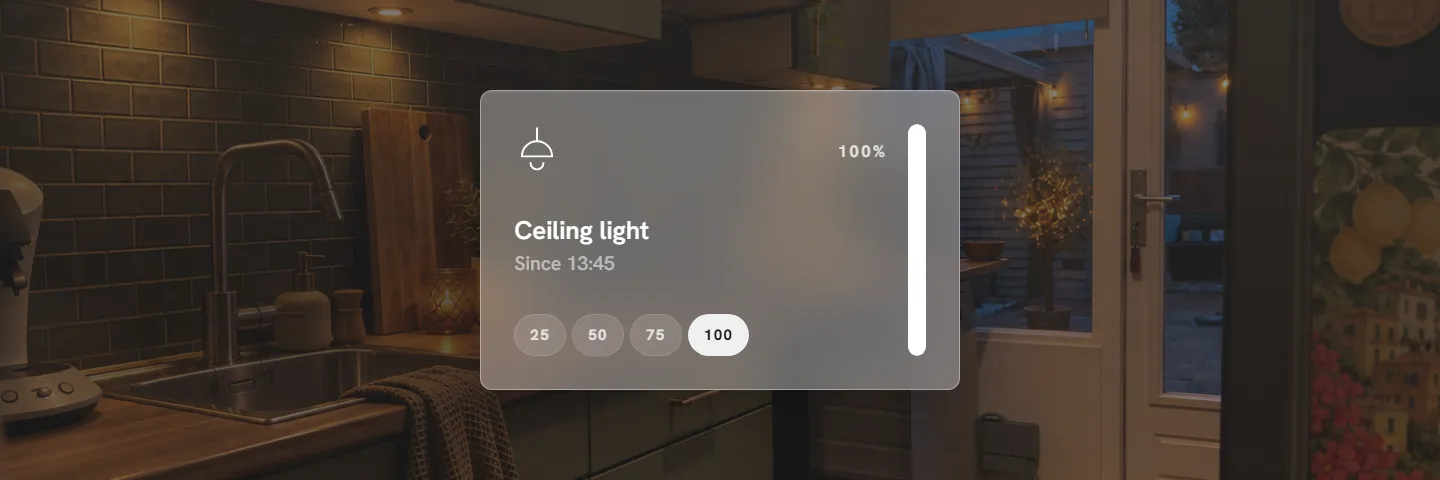
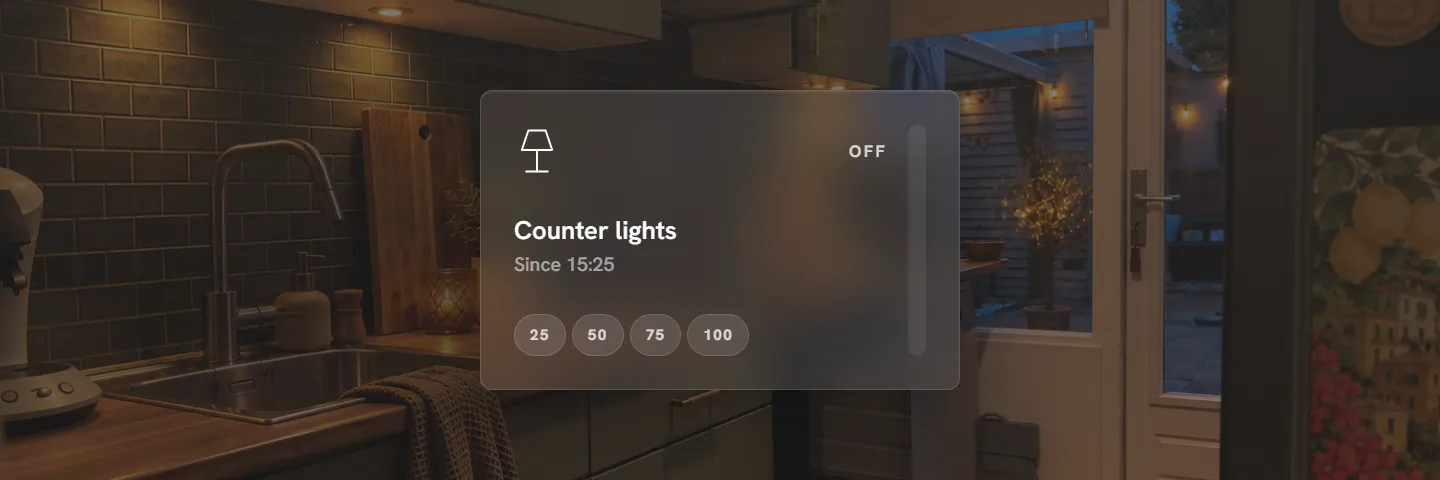
A thin vertical bar on the right sets the brightness (drag it; dragging to 0 turns the light off). The bottom line can show:
| bottom | shows |
|---|---|
| auto | brightness steps (25, 50, 75, 100) when the light is dimmable |
| steps | always the brightness steps |
| colors | colour dots; lights with only colour temperature get warm, neutral and cool |
| today | 24 hourly bars of when the light was on today |
| none | nothing |
Switches and smart plugs
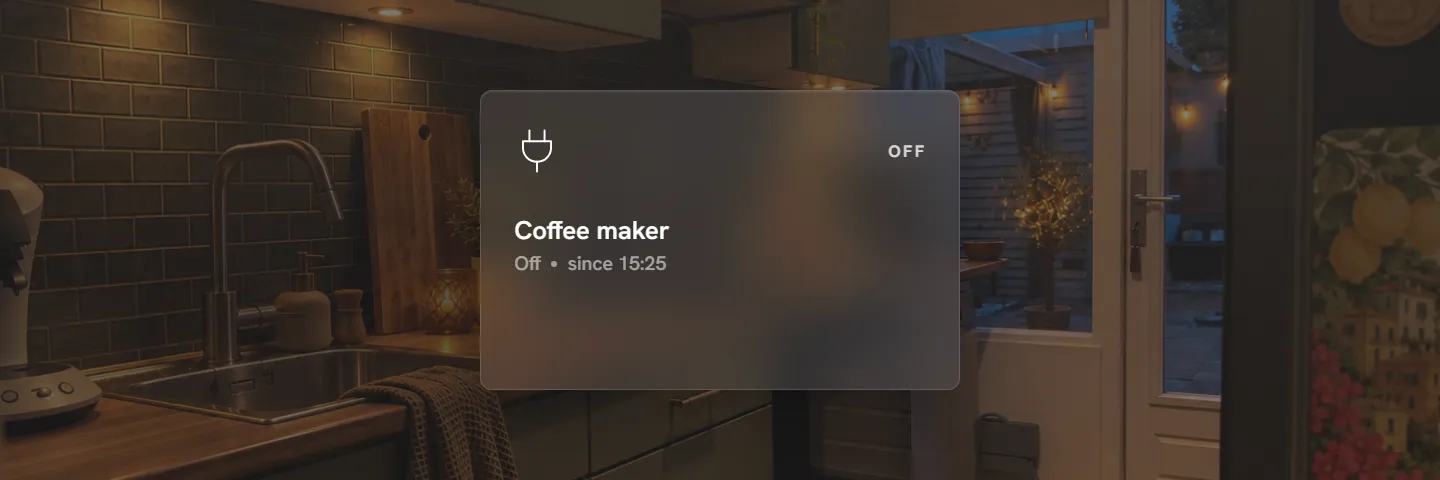
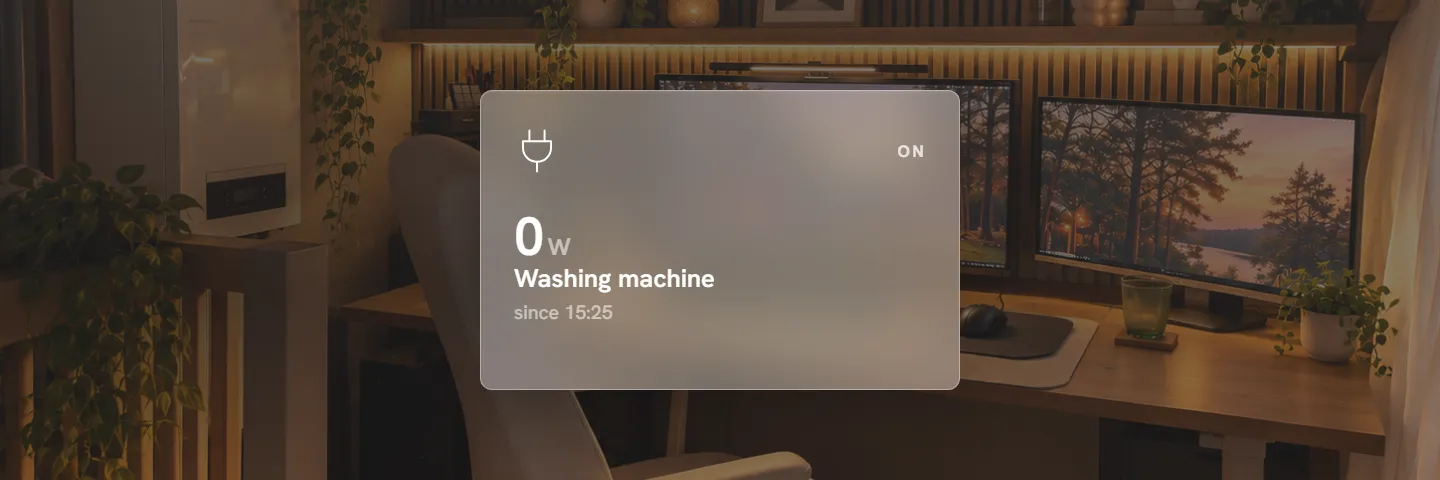
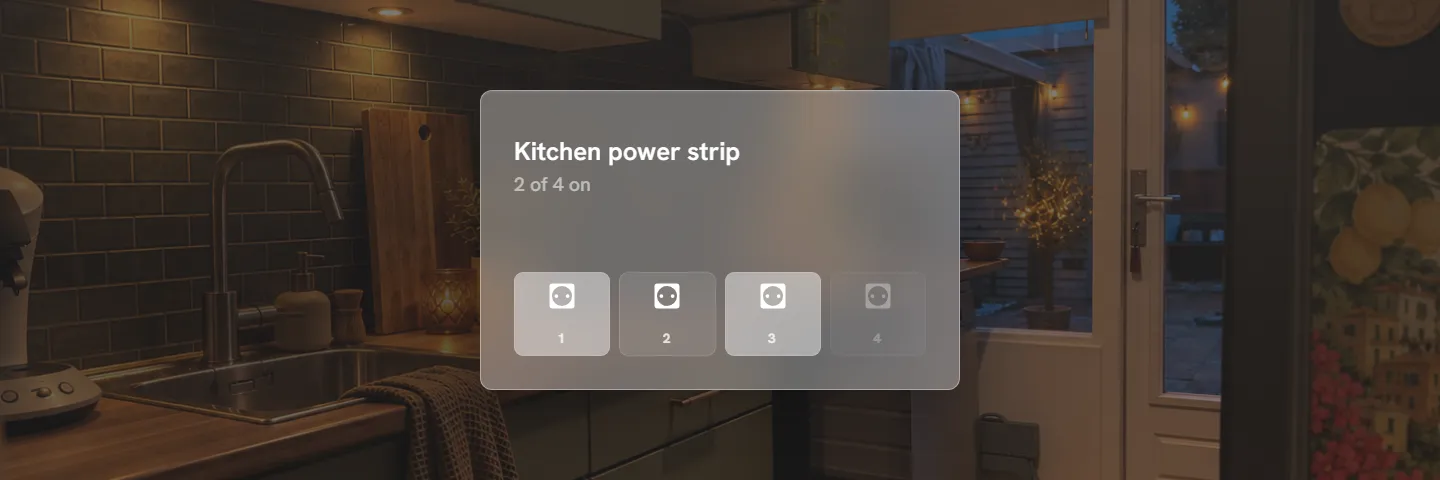
A switch toggles on tap. A switch whose device also reports power becomes a plug card: live watts big, kWh used today, and a three-hour sparkline. The bottom line can also be a timer (switch off after 15, 30, 60 … minutes), the cost today (set your price under Settings → Energy), or hourly bars. You can link a power sensor by hand when it lives on another device.
Appliances
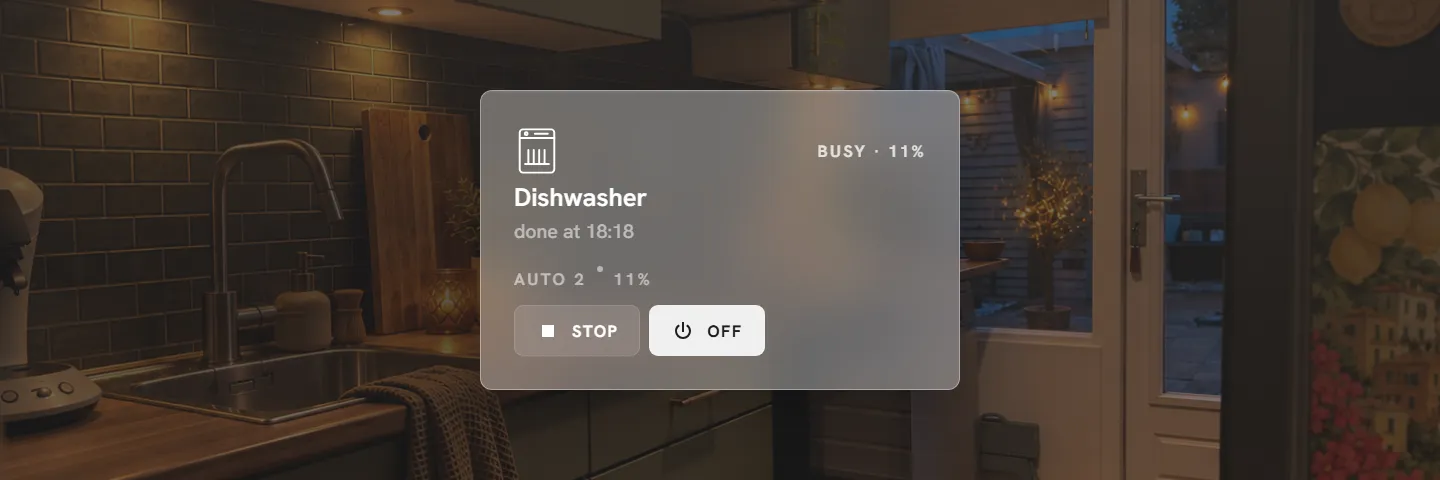
Washing machines, dishwashers and dryers are recognised in two ways:
- a device that reports its own status (Home Connect, Miele, LG ThinQ …): the card shows the programme, progress, finish time and door, with a Stop button;
- a smart plug with a power meter: busy above a threshold (5 W by default, adjustable per card), done when it drops, standby otherwise.
Media
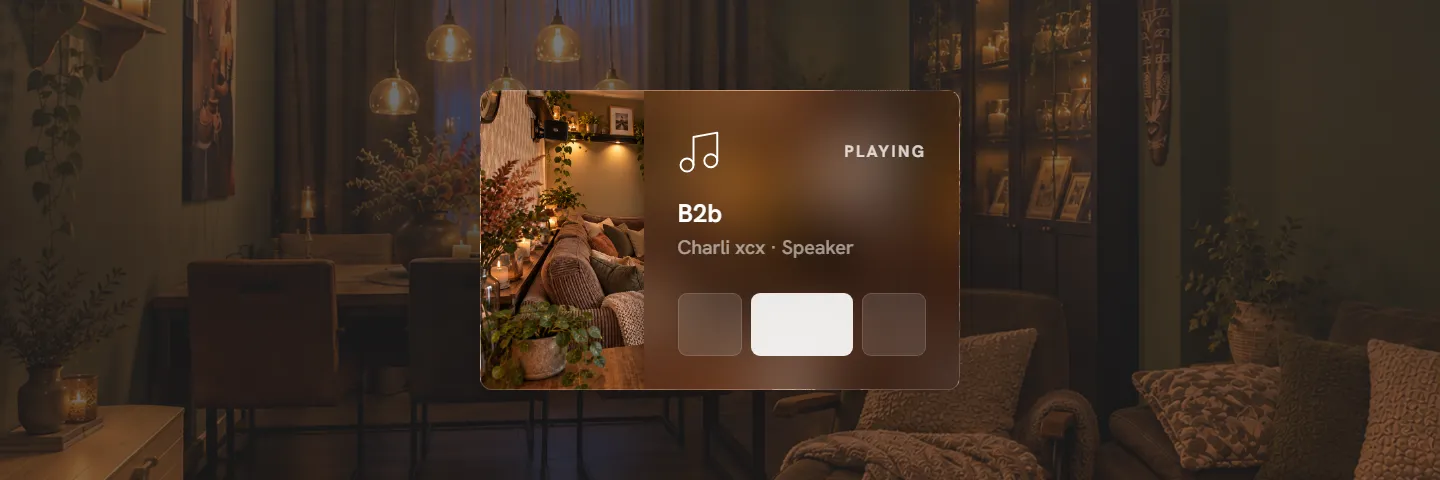
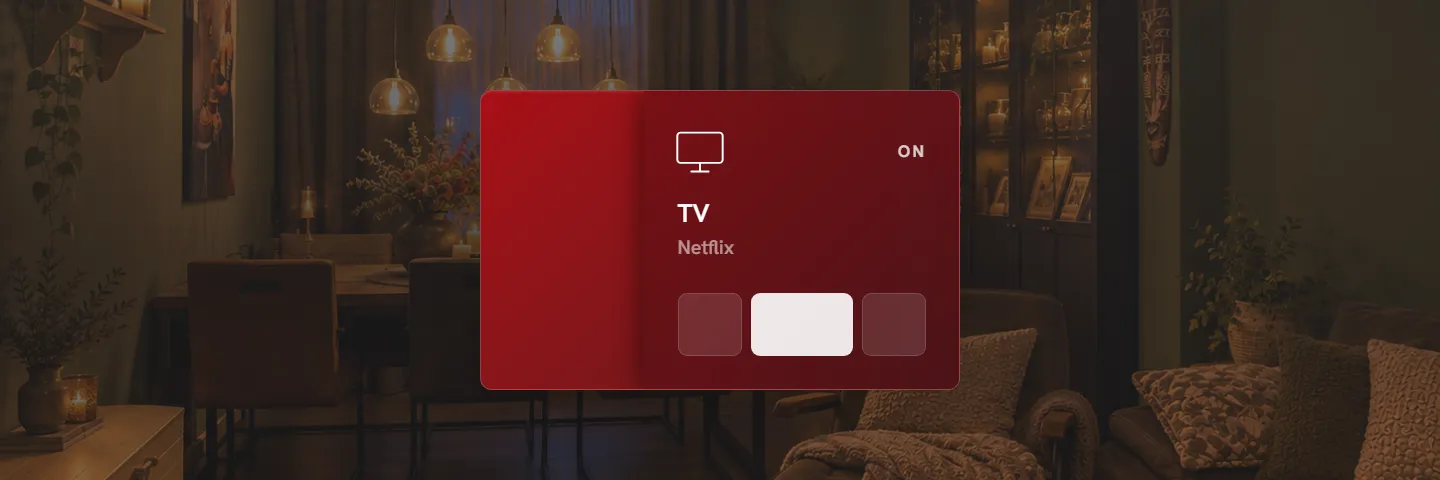
Artwork as the card background, title and artist, and previous / play-pause / next on the card. When the same TV appears through several integrations (Android TV, Cast, Bravia), they are merged into one card.
Climate
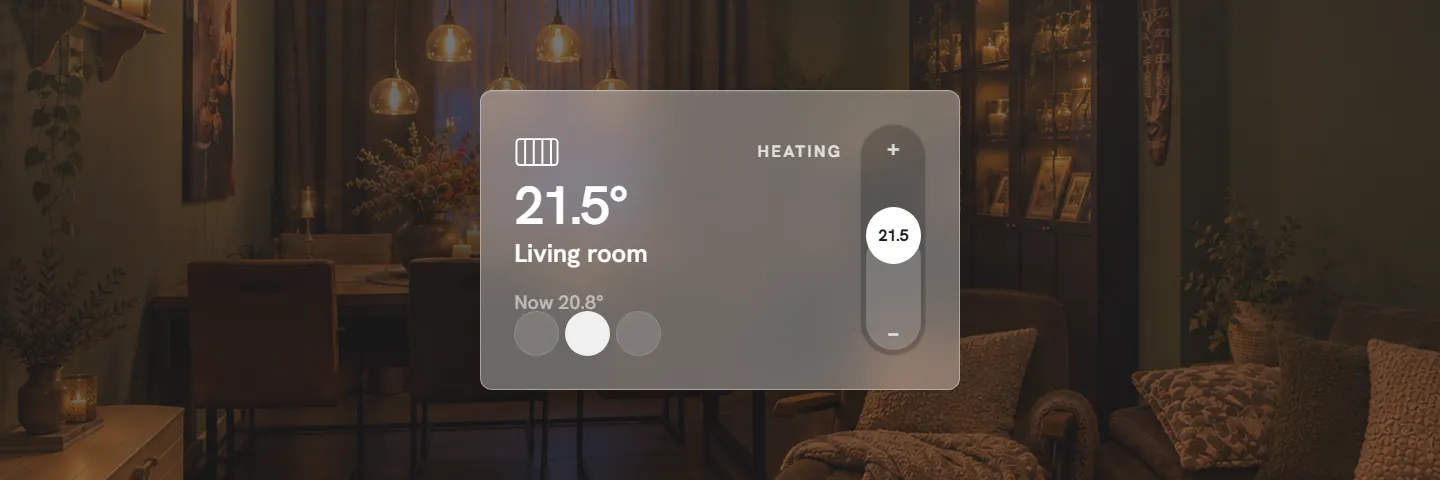
The current temperature big, the name below it, and a rail on the right to drag the target up and down (the knob shows the target). Under the name: the target, plus one extra item you pick under Bottom line in the card settings: humidity or the active preset (automatic), the time spent heating today, the outside temperature (from the weather entity), or nothing. On phones only that extra item is shown, at the bottom. HVAC modes sit in a row at the bottom. The popup lists every room's temperature.
Covers and fans
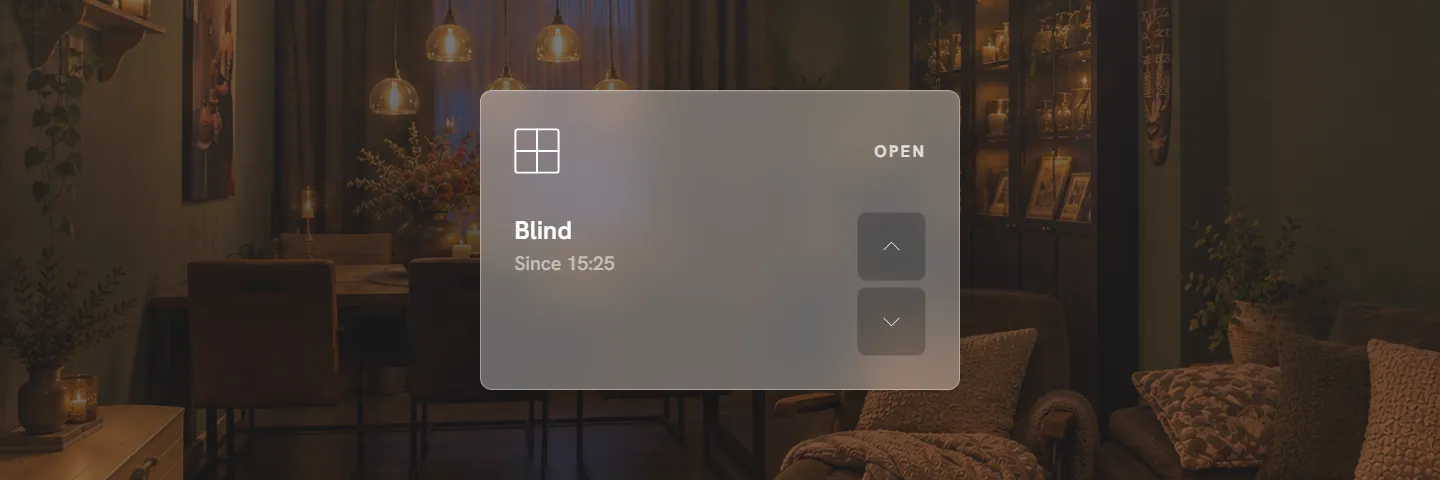
- Covers: up and down buttons; covers with a position get the vertical bar.
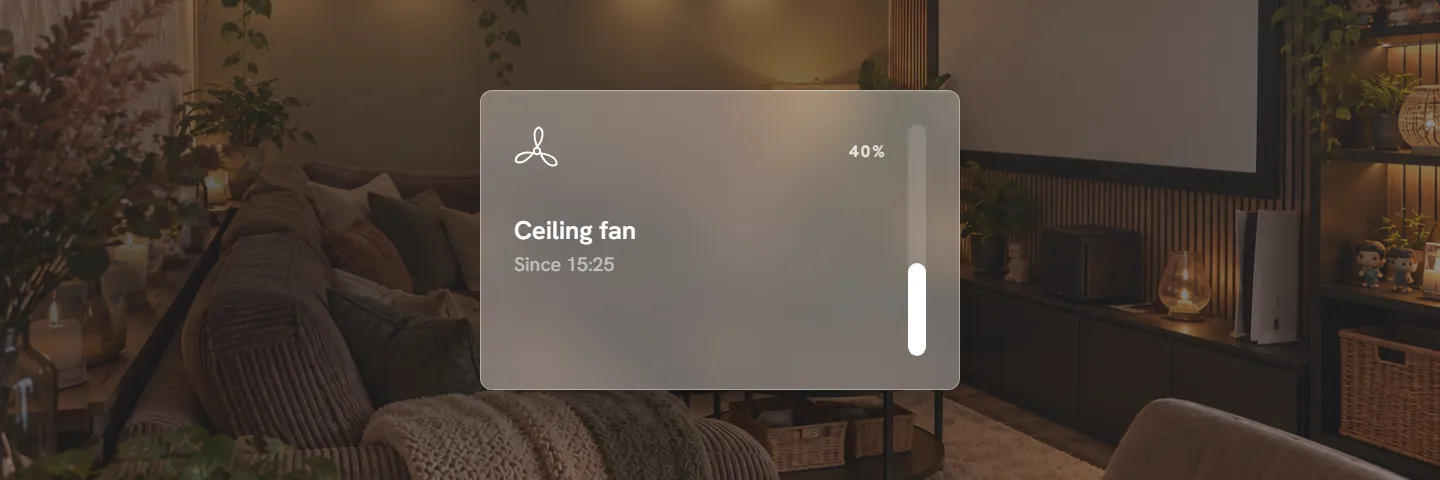
- Fans: vertical bar for speed, presets and oscillation in the popup.
Locks, vacuums and humidifiers
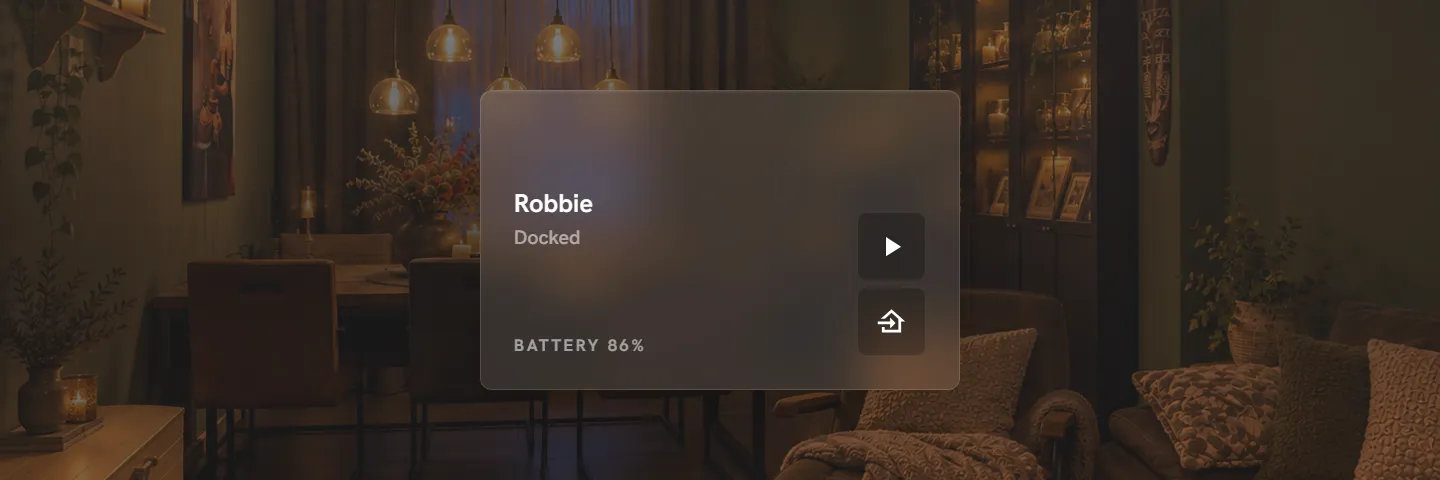
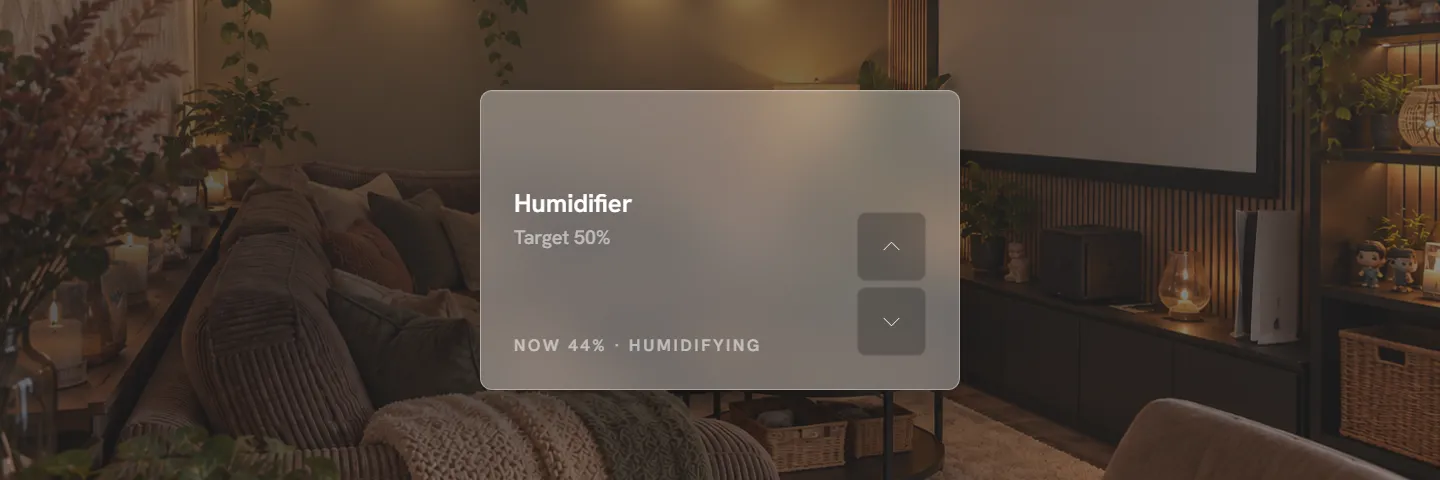
Sensors
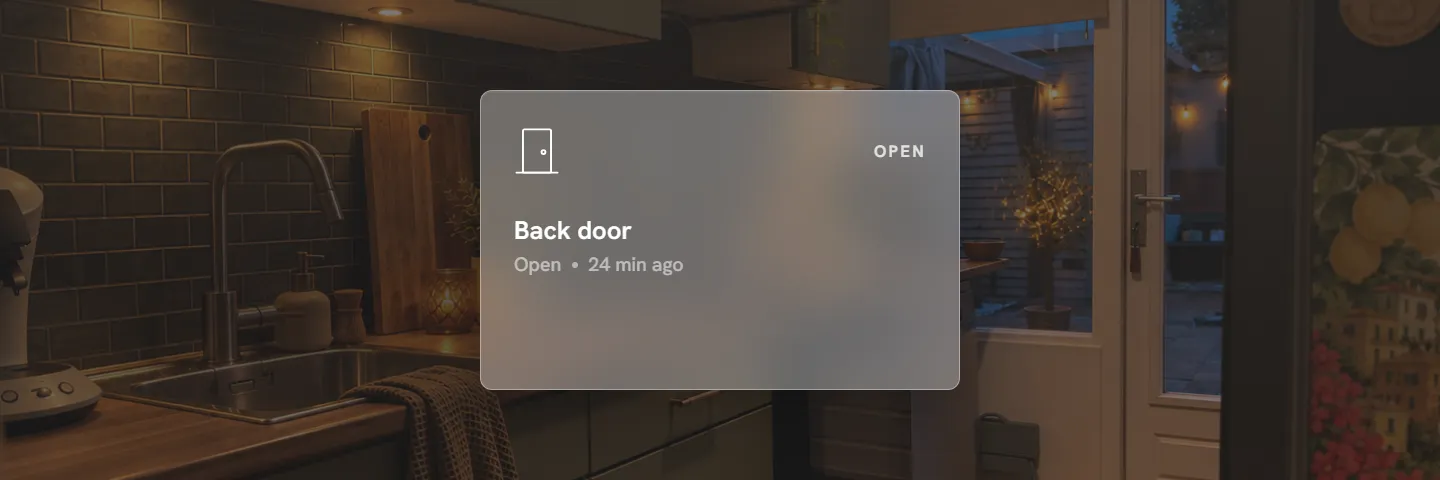
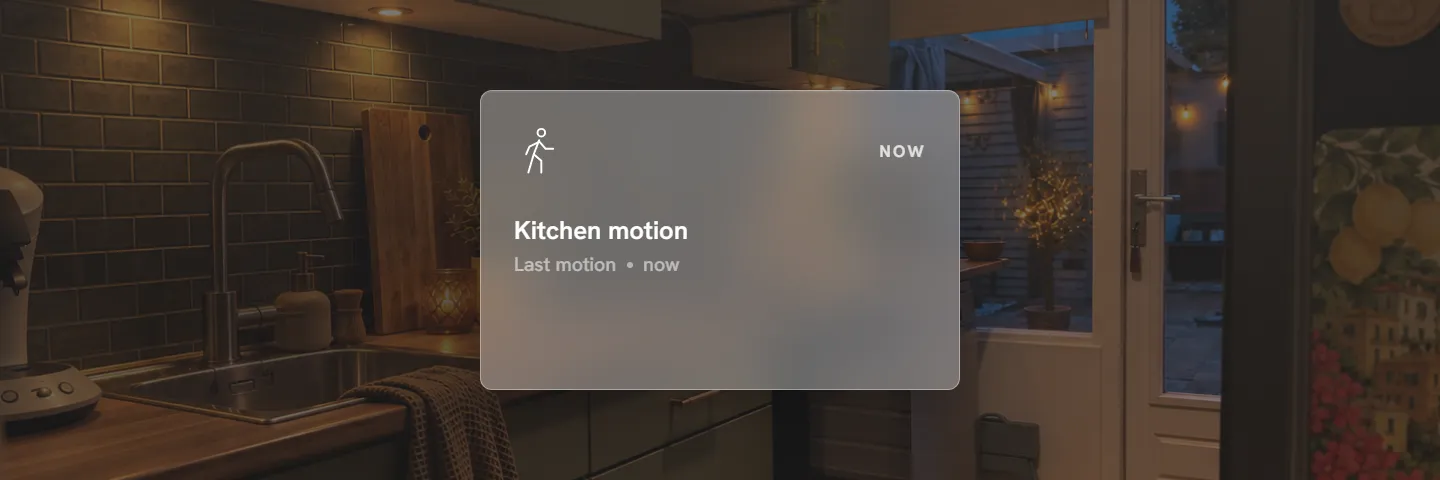
Doors, windows, motion, smoke, leak and other binary sensors show their state and how long it has been that way ("Closed · since 08:51"). Their bottom line can show today: when they were active, as bars. Battery-powered sensors can show the battery level in the corner. A sensor with a missing or wrong device class gets the right card through Kind in its card settings.
Value cards. A plain sensor (temperature, humidity, power, a percentage, a text) does not get a card by itself; add one in edit mode → Add card. The number is shown large with its unit, the name under it, the kind in the corner and the last change at the bottom. Text sensors show their text instead. Tap for the details, hold for Home Assistant's dialog; action buttons and the template overrides work as on other cards.
Cameras
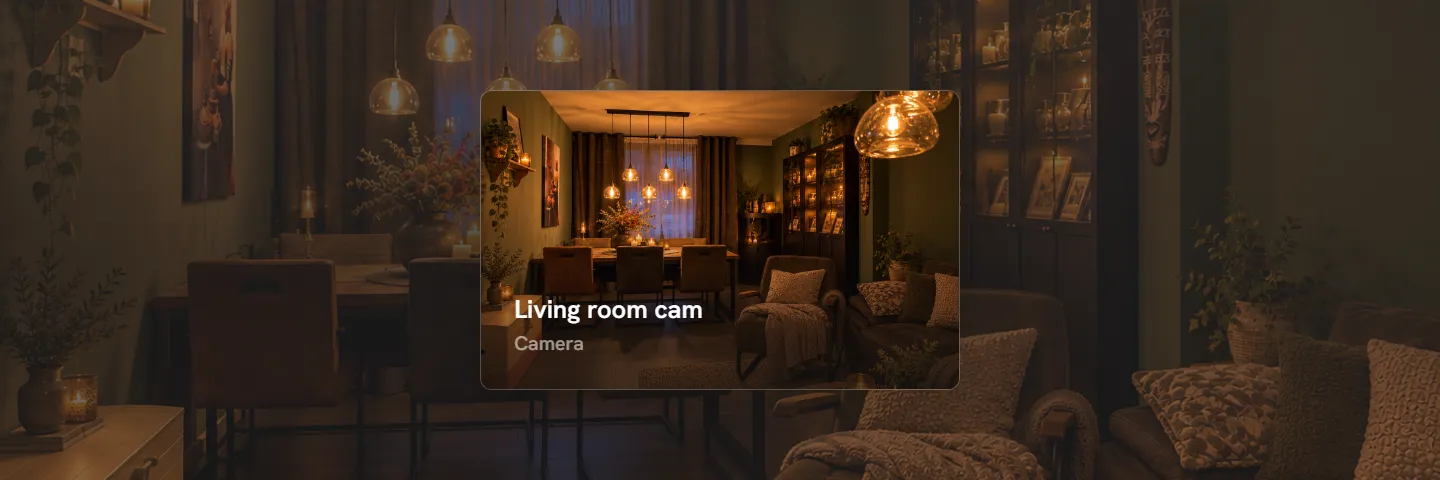
A live snapshot that refreshes every few seconds without flicker; tap for the stream and the motion events of the last 24 hours.
Home view cards
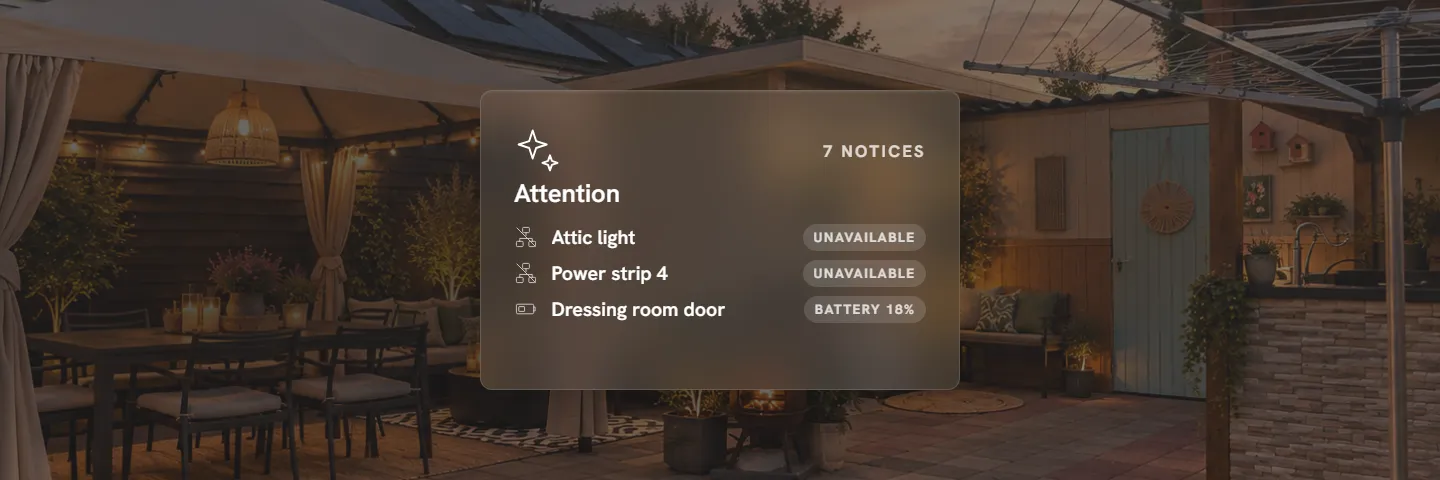
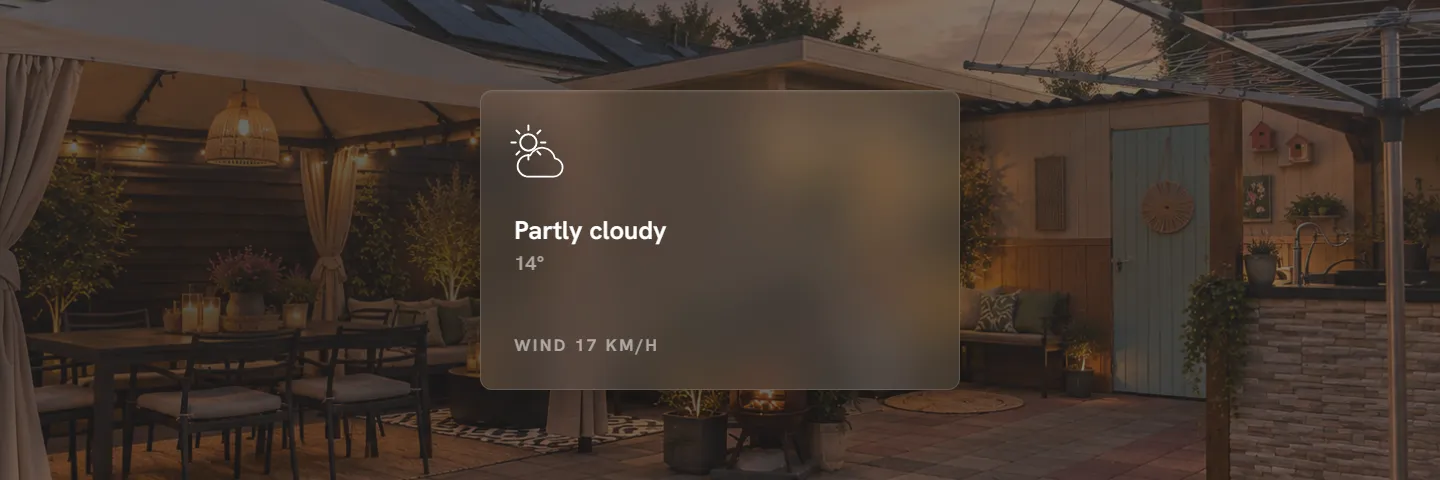
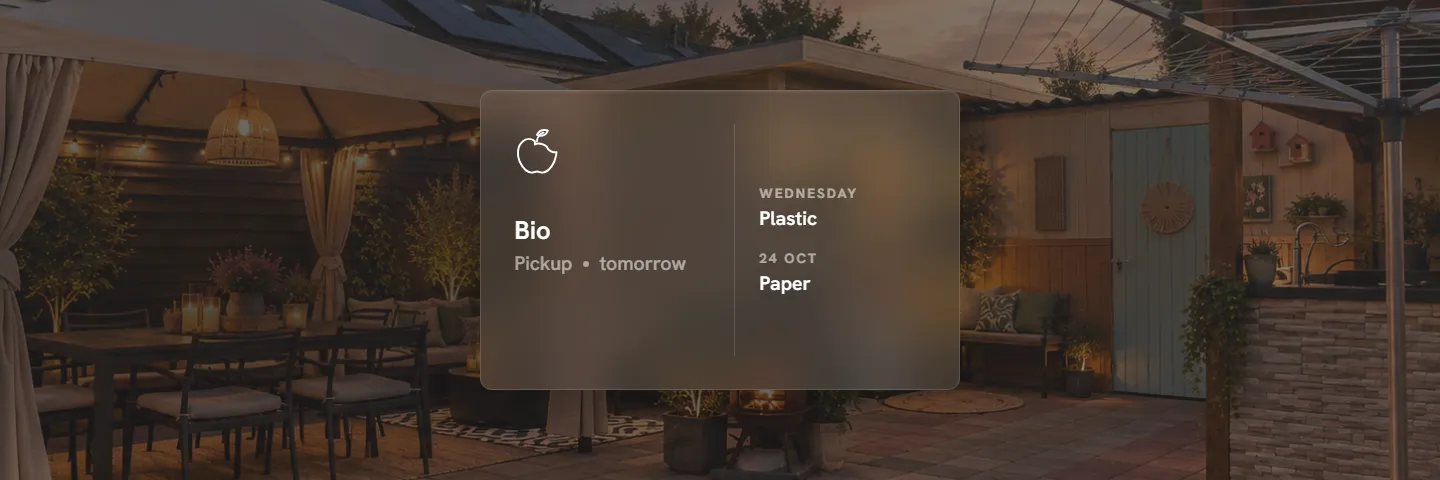
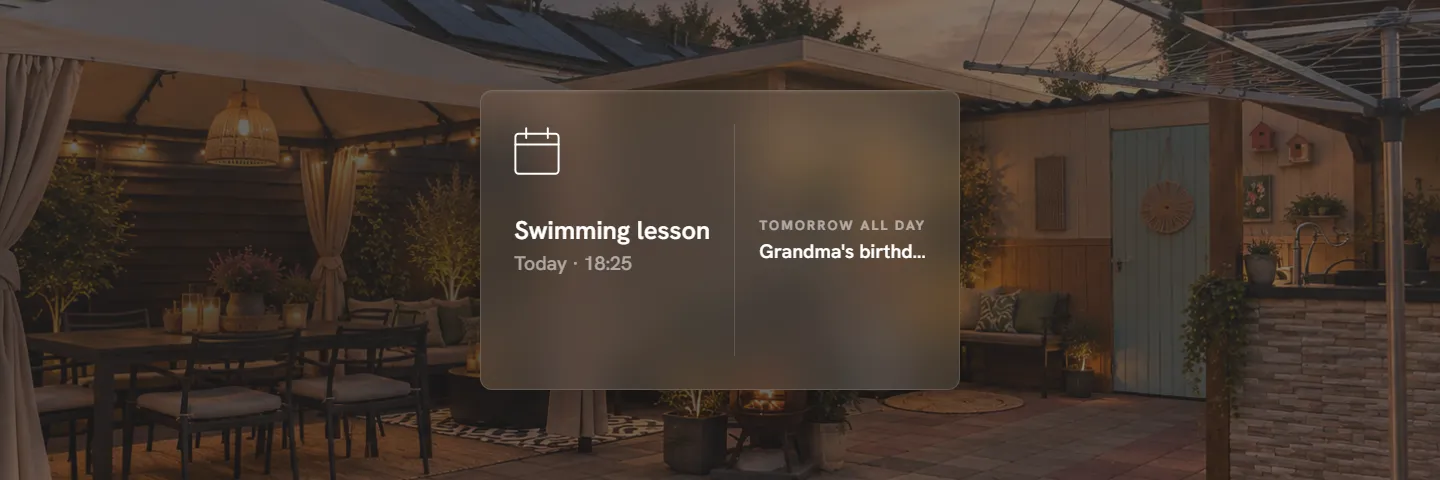
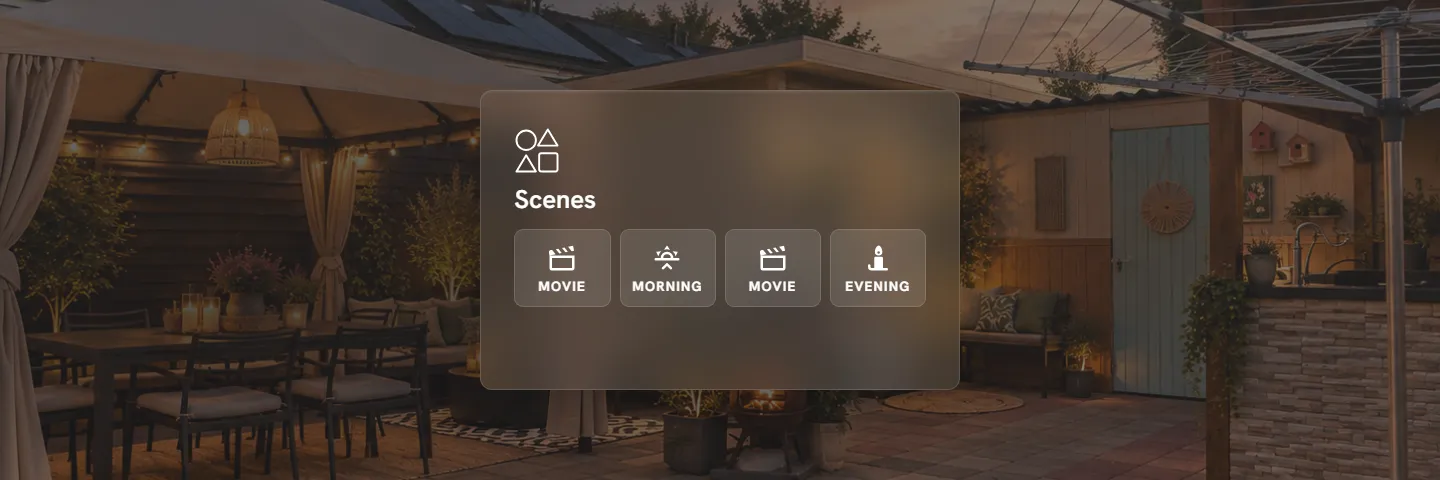
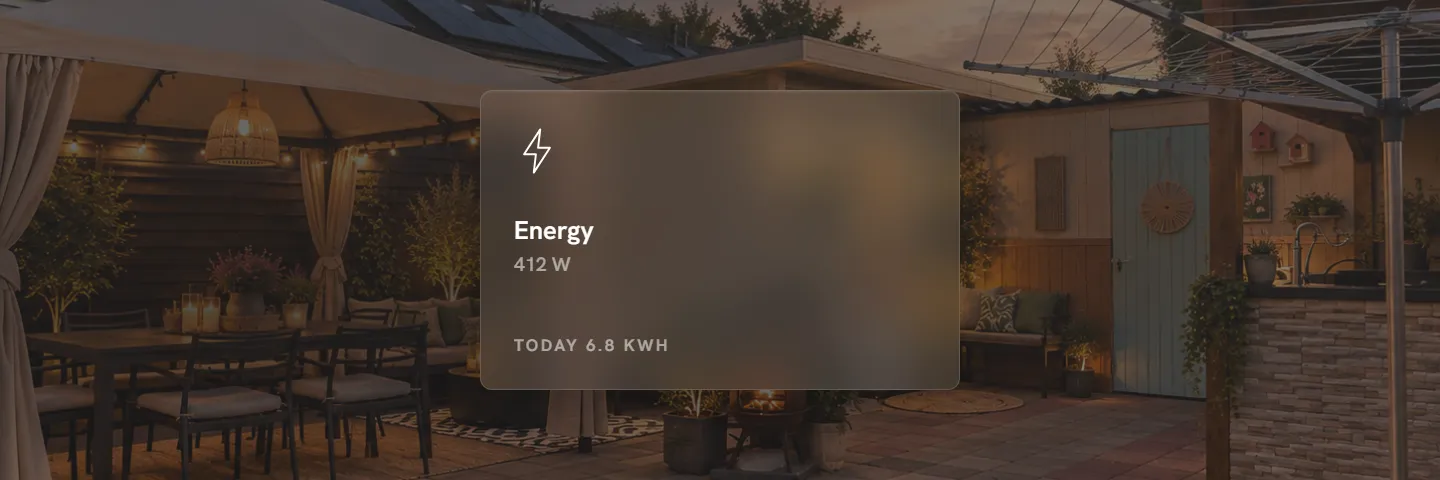
Waste pickups work with the Afvalbeheer and Afvalwijzer integrations and any sensor with a date. Attention, Weather, Household, Security and Agenda are on the home view by default; the thermostat, waste, scenes and energy cards are added through Add card.
More home view cards
Seven more cards can sit on the home view. Security and Household appear by themselves when the entities exist. List, Timers, Car, Solar and Garden are added through Add card; Car and Garden are set up in their card settings, Solar takes its sensors under Settings → Energy.
| card | shows | needs |
|---|---|---|
| Security | the alarm state, open doors and windows, locks and the number of cameras in one card; the popup arms the alarm, lists what is open, locks and unlocks, and shows every camera | an alarm panel or a lock |
| Household | everyone with their picture (grey when away), who is away and since when, the zone they are in, or on the way · 12 km · 14 min when the Proximity integration or a travel-time sensor named after the person exists | person entities |
| List | the first open items of a to-do list with a tick box each; the popup has the whole list, an add field and Clear completed | a todo entity (Home Assistant's shopping list counts); the card picks a shopping list by itself, another list is chosen in its card settings |
| Timers | running timers counting down, with +5 / +15 / +60 minutes; idle timers start from the card or the popup | timer helpers |
| Car | the charge as a ring, the range, charging power and when the battery is full; a start / stop button when a switch is set | the battery sensor, the rest optional (card settings) |
| Solar | solar power now, today's yield, the home battery and how much of your use is your own power; bars of today's yield | a solar power sensor under Settings → Energy, optionally a daily sensor and a battery |
| Garden | watering zones as buttons, the next run and today's rain | switches or valves per zone (card settings) |
Air quality is a room card: a room with a CO₂, VOC, fine dust (PM2.5 / PM10), AQI, NO₂ or ozone sensor gets one, with up to four readings rated good / so-so / poor, a one-line advice ("CO₂ is high: open a window") and the humidity. It can be placed on the home view too through Add card → Air quality.
Groups
A group combines several lights, or several switches, plugs and fans, into one card, placed in a room or on the home view (Add card → Group). A group is either a light group or a plug group; the kind decides which entities you can pick as members.
Three styles: tiles shows a chip per member that toggles that one; list shows the members as rows; counter shows how many are on as a big number with a progress line and the names of the lit members under it.
A light group gets the light card's bottom line: Bottom in the card's ⋯ settings offers brightness steps and colours (colour dots or warm / neutral / cool white, depending on what the members support), and a tap sends that to every light in the group. Groups also take the tap and hold behaviour and up to three action buttons like any other card; an action button without an entity_id targets all members.
The group's popup lists the members; a tap toggles one, holding it opens that light, fan or switch in its own popup (with an arrow back to the group). A light group with dimmable lights also gets a brightness slider there: together moves every light at once, per light shows one slider under each light.
Graphs
Settings → Graphs adds a card with a line of one numeric sensor (temperature, humidity, power, …) over the last 3 hours to 7 days, placed in a room or on the home view. The corner shows the current value, the line under it the trend, and the subtitle the average and the range for the period. Tapping opens the Home Assistant history dialog of the sensor. Name, icon and tap behaviour can be changed per card like on any other card.
Door, window and motion cards can take the same layout: set Bottom to graph (on/off line) in the card's ⋯ settings (or for all of them under Settings → Card defaults). The line then steps between off and on over the last 24 hours, with today's total on the bottom line.
Light scenes
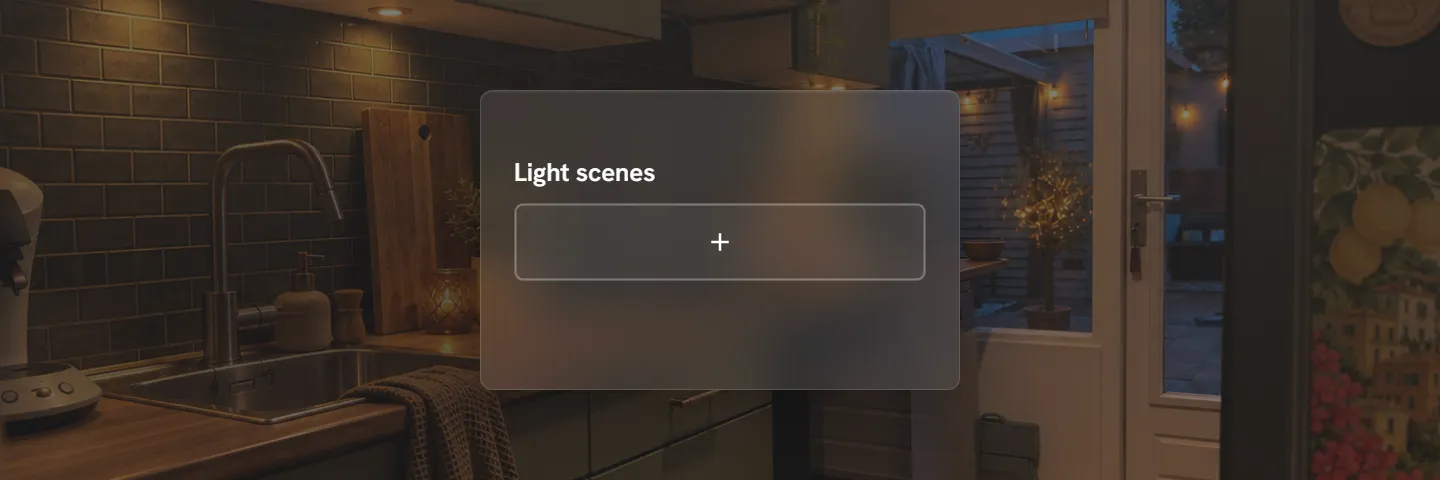
Every room with lights gets a Light scenes card. Save the current state of the room's lights (on/off, brightness, colour) as a preset and recall it with one tap.
Template cards
Settings → Template cards is a library of cards whose text, label and visibility condition are Jinja templates, rendered live by Home Assistant. A template gets a name, an icon and a tap action (details, toggle, a service call or navigation). The entity is not part of the template: you pick it when you place the card, and write $entity wherever it goes:
{{ states('$entity') | int }} days        ← text
{{ states('$entity') | int < 10 }}        ← visible
Under Filled in when placing you mark which fields (text, label, visibility) the card asks for when it is placed; what you type in the template is then the example. You place a template through edit mode → Add card → Template: pick the entity, fill in the asked fields, done. The same template can be placed as often as you like; each copy keeps its own values, name and icon in its card settings.
You do not have to go through the settings page: Add card → Template → New template card writes a template right there, with a choice between once, only here (the definition travels with that one card; its texts are edited in the card settings) and in my library too (saved as a reusable template as well). Template cards that were pinned to a page before 3.1 are moved to that page's cards automatically.
Note
Templates are rendered by Home Assistant's template websocket, which needs an administrator account.