Home view and rooms
Navigation
The pill at the top lists your rooms and More (the built-in pages and settings). The search icon finds rooms, pages and devices. On the right: who is home, the alarm state and the clock.
On phones and tablets the rooms live in the bar at the bottom: Home, the current room (tap it for the list of rooms, or the floors with their rooms when navigation is set to floors), More and a search button. The cards become a two-column grid.
- Swipe left or right on a room page (outside the cards) for the next or previous room.
- Scroll the card strip with the mouse wheel, by dragging, or by touch.
- Hold a page title to set up that page.
Home view
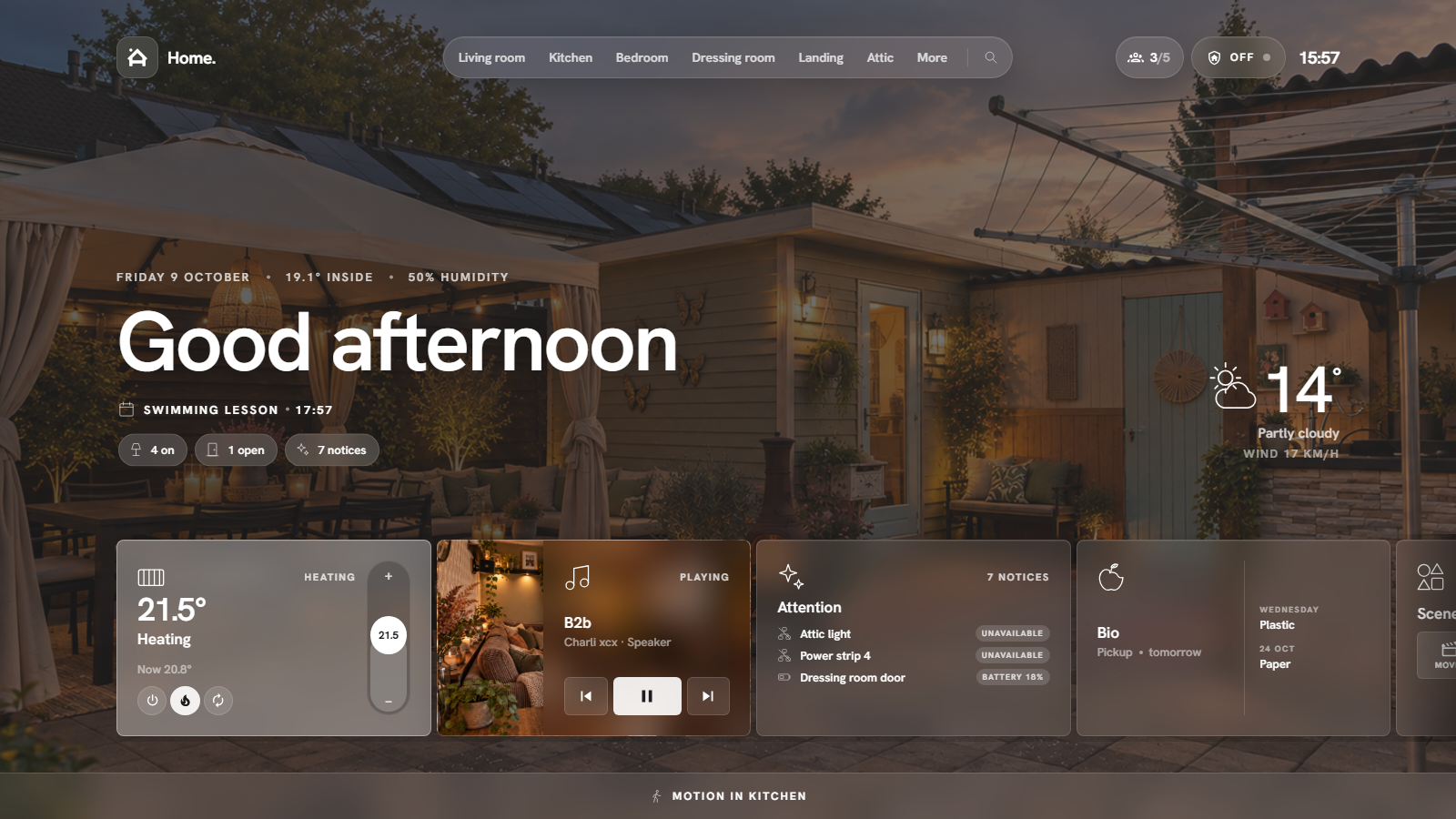
From top to bottom:
- Date, indoor temperature and humidity. The average of all rooms, or the sensors you choose under Settings → Home page.
- Greeting. Changes with the time of day, or set your own per page.
- Notification line. Rotates through what is worth knowing: waste pickup, the next appointment, an open door, a playing speaker, a running appliance, active modes, and your own lines (plain text or Jinja templates).
- Status pills. Lights on, doors and windows open, items needing attention. Tap one for the list.
- Quick actions. Your own buttons: a scene, a script, toggle something, all lights off, media off. Optionally with a confirmation.
- Weather. Current conditions with a heads-up when rain is coming; tap for the hourly and 7-day forecast.
- Cards. By default: Attention, Weather and Household, plus Security (with an alarm or a lock) and Agenda (with a calendar). Everything else (thermostat, a media player, waste, scenes, energy, list, timers, car, solar, garden, groups, graphs, templates) you add yourself through edit mode → Add card, and remove again with the bin.
- Motion bar. Shows where motion is detected right now.
Room pages
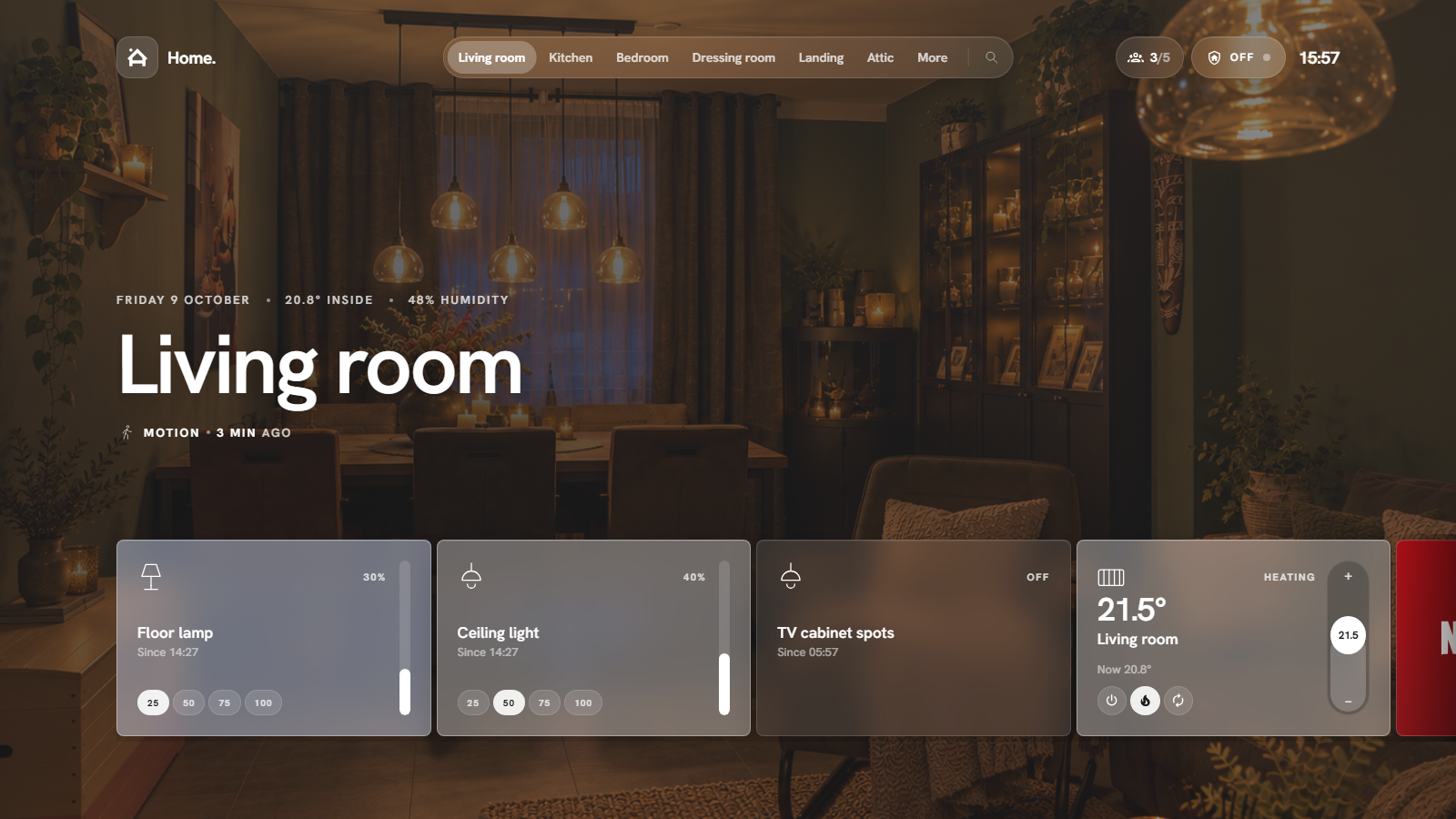
Each room shows its photo, its temperature and humidity, a notification line for that room (lights on, open windows, what is playing) and, by default, a card for every light, plug (switches, power strips, plugs with a meter) and motion sensor in the area that is reachable. Everything else in the area (thermostat, media, covers, fans, locks, doors and windows, cameras, scenes, light scenes, air quality …) you add through edit mode → Add card, where the room's own entities are listed first, and remove with the bin. A room with nothing to show by default and nothing added is left out of the navigation until you list it under Settings → Rooms. See Cards for each type.
Edit mode
Administrators can rearrange a page in place: More → Edit room (or Edit home view), or hold the page title. The strip then shows every card of the page, including hidden ones:
- drag a card by its grip to change the order;
- × hides a card; a hidden card stays in the row, dimmed, with an eye to bring it back; a card hidden by its visibility condition shows a gear to its settings instead;
- a tap on a card opens its card settings;
- Add card at the end adds something new (below);
- Page settings in the bar at the bottom opens the title, photo and notification-line settings; Done leaves edit mode (so does Esc).
On phones the bar at the bottom becomes the edit bar; drag with a short hold.
Adding a card
Add card works like Home Assistant's card picker: choose a kind of card, then configure it.
- Devices: light, switch or plug, door or window, motion, on/off sensor, value (any sensor), media, thermostat, shutter, fan, lock, camera, other. You pick the entity from a list that only shows that kind (entities without an area first, entities from other rooms with their room name), then where it belongs.
- HaCasa cards: weather, agenda, waste, energy, attention, the home thermostat, scenes and light scenes (the last two ask which room's), and a new group (name, style, members) or graph (sensor, period), configured right there. A card that is hidden on this page is simply shown again; one that is not set up yet points you to Settings → Home page.
- Your own cards: a template from your library (see template cards), picking its entity and filling in the fields it asks for.
Cards you added this way, including groups and graphs, are removed again with the bin in edit mode; the panel's automatic cards are hidden instead. A tap on a group or graph in edit mode opens its settings (members, sensor, period) too. For an entity you search by name, id or area; entities without an area come first, entities from other rooms carry their room name, and what is already on this page is greyed out. Then you choose where it belongs:
- Only in HaCasa (default): the card is added to this page; nothing changes in Home Assistant. When the entity lives in another room you can hide it there at the same time.
- Change the area in Home Assistant (administrators): moves the entity to this area for every dashboard, automation and voice assistant.
The card settings of the new card open right away. A plain sensor (temperature, power, a text) becomes a value card: the number large, the name under it, the last change at the bottom, a tap for its details.
Per-page settings
Open Page settings from the edit bar, hold the page title as a non-administrator, or go to Settings → Pages to change:
- the title and photo,
- which cards are shown and in which order,
- which kinds of notification lines appear,
- your own lines for that page: plain text, or a Jinja template rendered live by Home Assistant.