

Activity
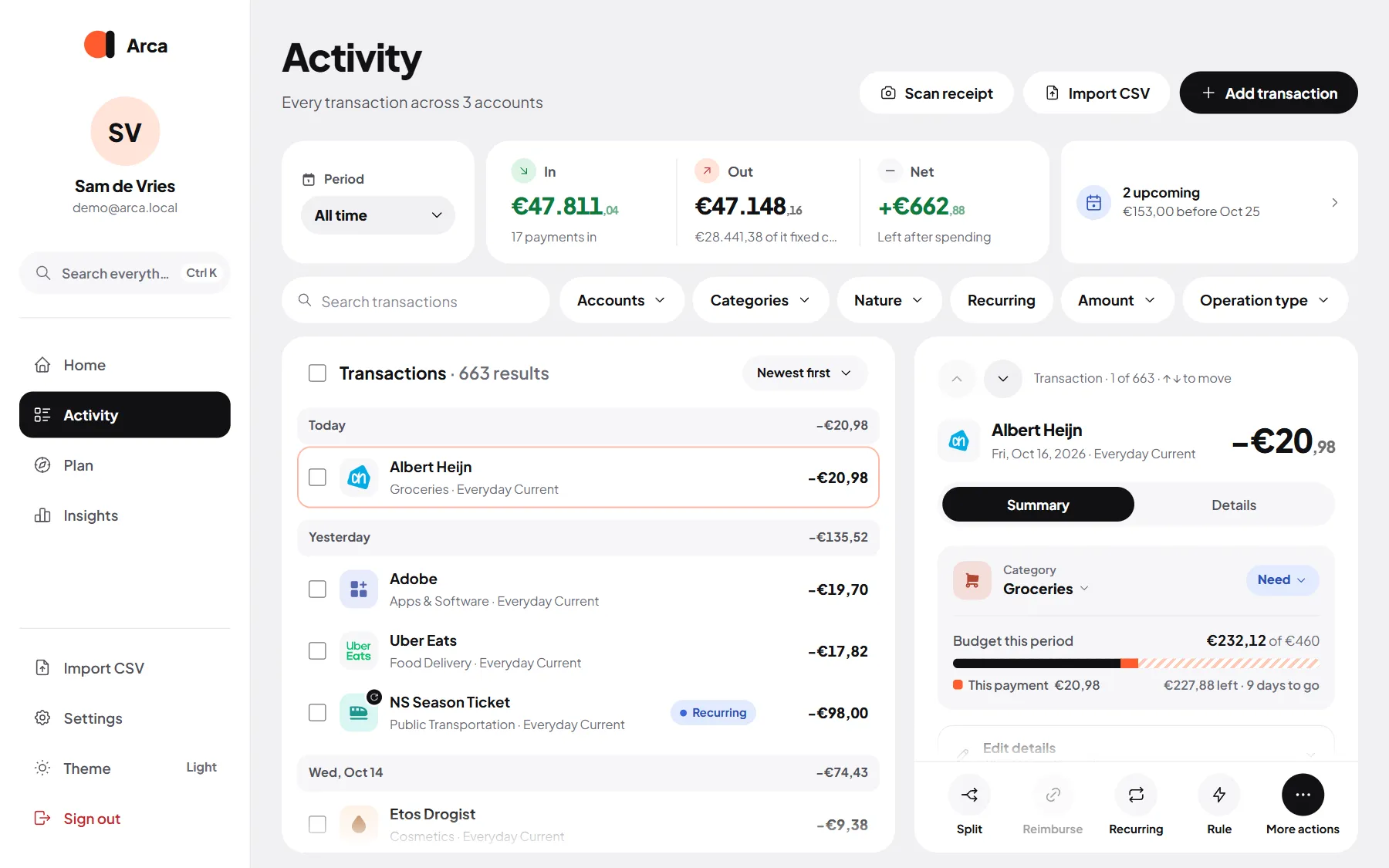
Activity lists every transaction across your accounts, grouped by day, newest first.
Search
Section titled “Search”Type in Search transactions to filter the list as you type. Search looks at the description, the amount and the category name, and always searches all dates, whatever period you picked. On a phone the search bar sits at the bottom, within thumb reach.
To sort differently, use the sort menu: Newest first, Oldest first, Highest amount or Lowest amount.
Filters
Section titled “Filters”The chips above the list narrow it down. Tap a chip to set it, and the × to clear it.
| Chip | What it does |
|---|---|
| Period | All time, today, yesterday, this month, previous month, half a year, a year, or your own dates. Months follow your financial month. |
| Accounts | One or more accounts. |
| Categories | One or more categories. |
| Nature | Needs, wants or savings. |
| Recurring | Only transactions that belong to a recurring item. |
| Amount | A minimum and/or maximum. |
| Operation type | Only income or only expenses. |
Clear all filters resets everything except the period. The summary card above the list shows In, Out and Net for whatever you’ve filtered.
Select several at once
Section titled “Select several at once”On a computer, tick the checkbox on a row. On a phone, press and hold a transaction. Then pick more (or a whole day) and choose:
- Category: give them all the same category.
- Exclude / Include: leave them out of reports and budgets, or bring them back.
- Delete: remove them (you’re asked to confirm).
Press Esc or Leave selection mode when you’re done.
The detail panel
Section titled “The detail panel”Open a transaction to see everything about it. On a computer it opens on the right; on a phone as a sheet. Use ↑ and ↓ to step through the list while it’s open.
Summary shows the category, its budget type, what this payment did to the category’s budget this period, and the merchant or recurring history. Tap the merchant’s name for its profile. Under Edit details you can change the merchant, link a savings goal, write a note and add a receipt.
Details shows everything your bank sent along, such as the IBAN, the reference and the original bank line, with copy buttons.
What you can do
Section titled “What you can do”- Change the category. Arca then offers to file this merchant the same way from now on. See Rules and merchants.
- Split it into parts with their own category, by amount or by count.
- Reimburse: on money coming in (a Tikkie, a friend paying you back), link it to the expense it paid back.
- Recurring: turn it into a recurring item.
- Rule: create a rule for transactions like this one.
The ⋯ menu has the rest: correct the amount, change the merchant, pick a logo, add or remove a receipt, exclude from reports, mark as a reimbursement or as an internal transfer, look the shop up on Google, or delete the transaction.
Shared costs
Section titled “Shared costs”Paid a bill in full that others pay you back for, like dinner or the energy bill with a housemate? Open Split and switch on Others pay me back for this, then enter how many people share it (you included).
- Your cash flow always keeps the full charge: it really left your account.
- Reports can show only your share if you choose Show my share in Settings → Budget & bills. See Preferences.
When the money comes back, open the incoming payment and use Reimburse to link it.
Correct amount
Section titled “Correct amount”Correct amount changes what a transaction counts as in budgets and reports, without touching your bank balance. Handy for a deposit you got back, or a purchase that was partly for someone else. While you type, you see what it does to the category’s budget. Leave it empty to remove the correction.
Transfers between your own accounts
Section titled “Transfers between your own accounts”Moving money from your checking account to savings isn’t spending. Arca recognises most of these by itself. If one slipped through, open it and choose Mark as internal transfer in the ⋯ menu. Internal transfers have no category and are left out of income, spending and budgets.
Receipts
Section titled “Receipts”Use Add receipt in a transaction’s details to attach a photo of the receipt. Open it again to zoom in or download it. Receipt photos live in /data with everything else, so they survive updates and are part of your backup.
Scan receipt (on Home and in Activity) works the other way round: take a photo first and Arca fills in the merchant, amount, date and a matching category for a new transaction. You check the details before saving. Scanning needs a local AI model (Ollama) that whoever runs your server sets up; without it, just type the details.
Add a transaction
Section titled “Add a transaction”Use Add transaction (or the add menu) for cash payments or anything your bank didn’t send.
- Choose Expense, Income or Transfer (between two of your accounts).
- Type the amount with the keypad (or your keyboard’s number keys). Switch on the calculator to add up amounts.
- Today, Yesterday and Tomorrow are one tap away.
- Pick a category to see what’s left in its budget after this.
- Save and add another keeps the form open with the same date and account.